Controller Buttons Not Working? How to Diagnose and Fix It
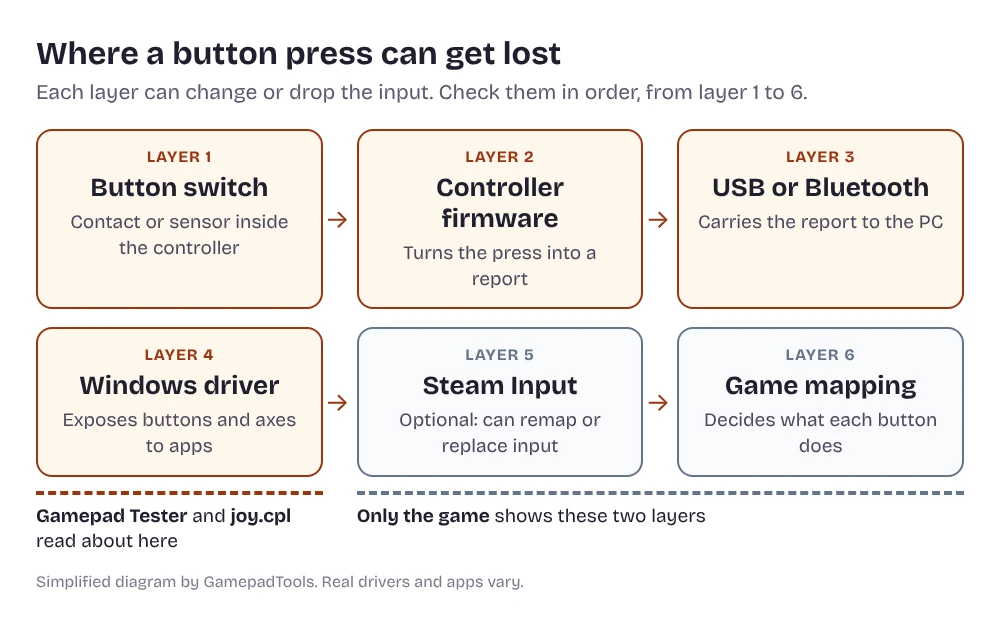
One dead button, several missing buttons, and buttons that work in Windows but not in your game sound like the same problem. They aren’t. Each points to a different place where the press is getting lost. This guide follows the evidence: press the button, see where it shows up, and narrow it down before you reinstall anything or reach for a screwdriver.
On this page
Quick Answer: Test Every Button First
Open the Gamepad Tester, press any button to wake the controller, then press every button one at a time. You’ll get one of two results:
- The press doesn’t show in the tester. Look at the connection and driver first, then at the controller itself.
- The press shows in the tester but not in the game. The controller is reporting it. Look at Steam Input, the game’s mapping and its controller support.
The test has limits. It shows whether a press reaches your browser, not why it failed, and a few extra buttons may never appear in a browser at all (see what a browser test can tell you). Even so, this one test saves most people from reinstalling drivers they never needed to touch.
What Does “Controller Buttons Not Working” Actually Mean?
Pin down the exact symptom first. Each one points somewhere different.
One button does not respond
Everything else works, but one button is dead or only works when pressed hard. If it’s dead in every app and on every device, a worn or dirty switch is the likely cause. If it’s only dead in one game, it’s probably mapped to nothing there.
Several buttons do not respond
Several buttons failing at once is more often a connection, mode or software problem than several switches failing on the same day. A controller in the wrong mode, a remapping profile or a half-working wireless link are the usual suspects.
Buttons work in Windows but not in a game
The controller and driver are fine. The game is either not reading this controller, reading it through Steam Input with a different layout, listening to a different controller, or expecting a keyboard.
Buttons are mapped incorrectly
Pressing A does what B should, or the on-screen prompts show the wrong symbols. That’s a mapping or layout issue, not a broken button. Common causes are Steam Input layouts, a game that thinks you’re using a different controller type, and Nintendo-style layouts where A and B swap places.
Triggers or bumpers do not register
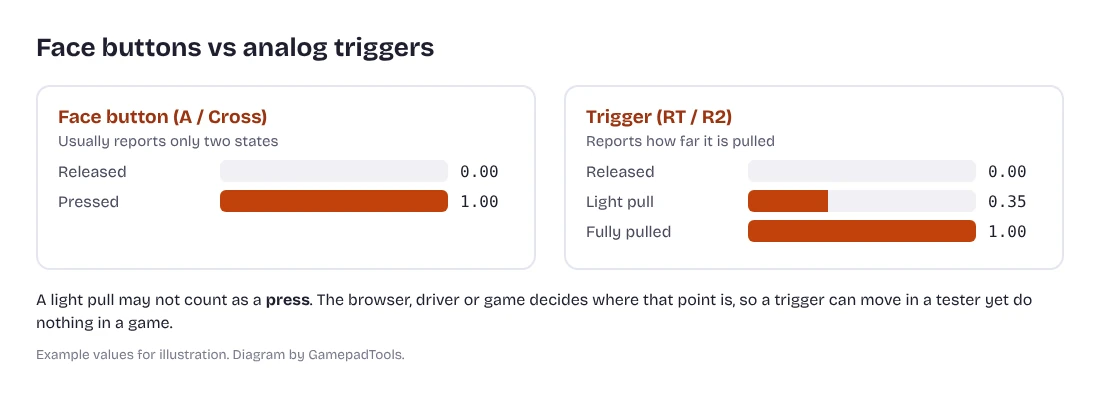
Bumpers are ordinary buttons. Triggers on most modern controllers are analog: they report how far you pull them, not just on or off. A trigger that only moves part of its range, or a game that needs a deeper pull, can look like a dead button.
A button appears stuck or stays pressed
A character that keeps crouching, or a menu that scrolls by itself, can mean a button is reporting “pressed” when you aren’t touching it. Check it in the tester: if it stays lit with your hands off the controller, the button itself is sticking or shorting. If it’s fine in the tester, look for a held-down key, a turbo or toggle setting in remapping software, or a stuck keyboard key the game is also reading.
Test Every Controller Button
Open the GamepadTools Gamepad Tester
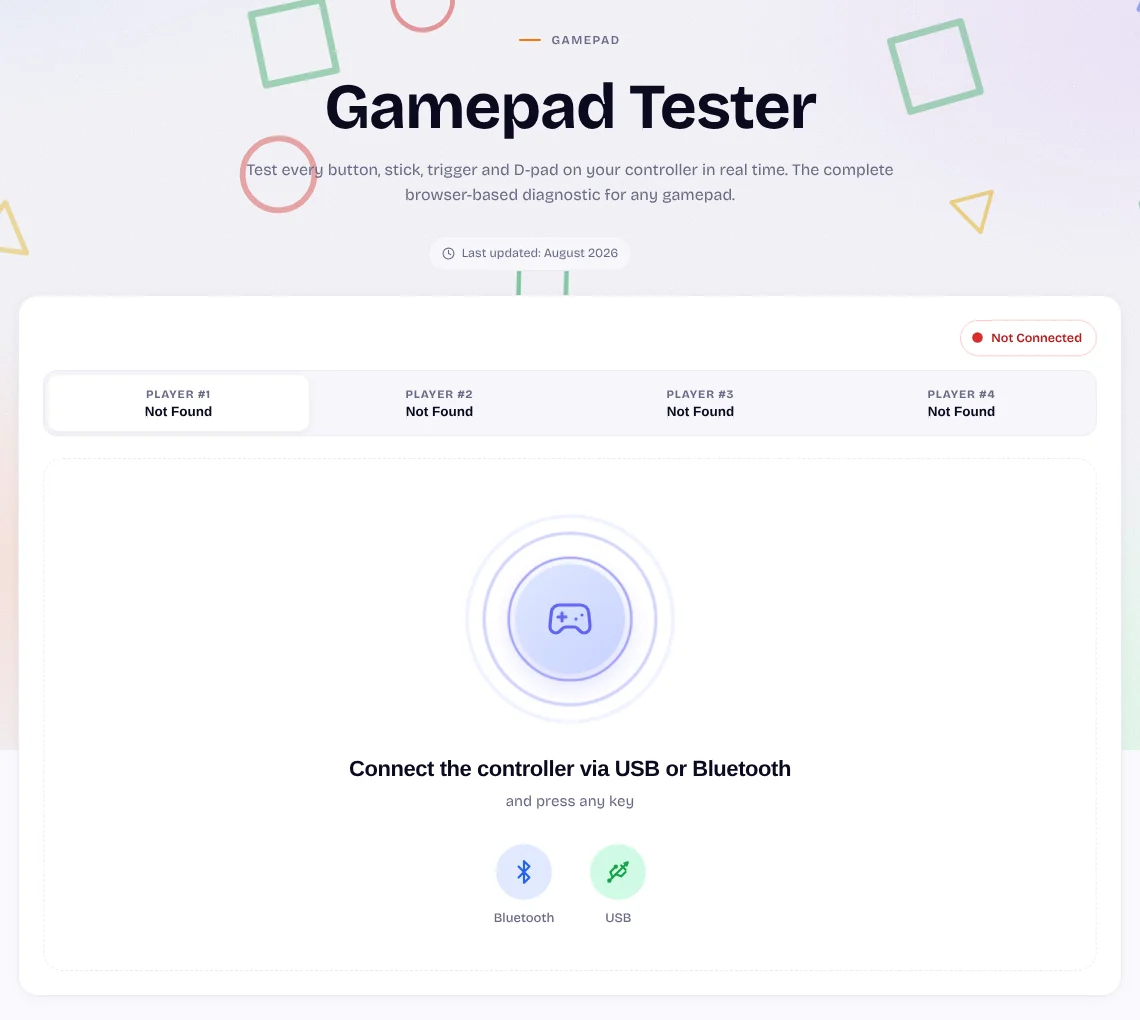
Connect the controller, open the GamepadTools Gamepad Tester and press any button. “Not Connected” before the first press is normal.
Press each button separately
Go round the controller in a fixed order so you don’t miss any: face buttons, D-pad, bumpers, triggers, stick clicks, then the menu buttons. Press each one a few times, slowly and then quickly. Watch for presses that don’t show, show late, flicker, or stay lit after you let go. Fill in the table as you go.
| Button | Gamepad Tester | Windows test page | In the game | Notes |
|---|---|---|---|---|
| A / Cross | ||||
| B / Circle | ||||
| X / Square | ||||
| Y / Triangle | ||||
| LB / L1, RB / R1 | ||||
| LT / L2, RT / R2 | ||||
| D-pad (4 directions) | ||||
| Stick clicks (L3, R3) | ||||
| Menu / Options, View / Create |
Test triggers, bumpers and D-pad directions
Pull each trigger slowly from released to fully pulled and watch the value climb. The W3C standard layout reports triggers as buttons with a value between 0 and 1 (W3C Gamepad specification). Note a trigger that stops rising partway or jumps around. Press each D-pad direction on its own, then try the diagonals.
Compare the result with another device or app
If a button fails in the tester, try it in another browser, on another PC, or on a console. A fault that follows the controller everywhere is probably in the controller. A fault that shows up on only one PC points to that PC’s connection, driver or software. Read your table like this:
| Gamepad Tester | Windows test page | Game | Most likely layer |
|---|---|---|---|
| Works | Works | Fails | Steam Input or the game’s mapping or support |
| Fails | Works | Varies | Browser support for that button, or a non-standard layout |
| Fails | Fails | Fails | Connection, driver or the controller itself |
| Fails on one PC only | — | — | That PC’s USB, Bluetooth or software |
What a Browser Gamepad Test Can and Cannot Tell You
Browser testers are quick and need no installs, but they see the controller through several layers. Knowing those limits stops you from reading too much into the result.
- You have to press something first. Browsers don’t show a controller to a page until you press a button or move a stick while the page is open (MDN: Using the Gamepad API). That’s a privacy feature, not a fault.
- It sees standard buttons and axes. When a browser recognises a controller, it can map it to a standard layout of buttons and sticks defined by the W3C specification. Controllers it doesn’t recognise may use a different button order.
- Results depend on the browser, driver and controller. The same controller can show slightly different button numbers in different browsers, because each browser reads input through the operating system in its own way.
- Extra buttons may be missing. A PS or Xbox button, touch-pad click, Share button or back paddles may not appear at all, even when they work in games.
- It can’t see inside the controller. A browser shows whether a press arrived, not whether a switch failed, a contact is dirty or the firmware dropped it.
- Steam can get in the way. If Steam is running, its desktop layout may turn controller presses into mouse or keyboard actions. Close Steam completely for the cleanest test.
Check Windows Controller Detection
Windows has its own controller test page, and it’s a useful second opinion. Logitech’s support page describes how to open it (Logitech: Access the Windows Game Controllers test page). Logitech’s steps cover Windows 10 and earlier, and the same command opens the page on Windows 11.
Open joy.cpl
Press Windows + R, type joy.cpl and press Enter. The Game Controllers window lists the controllers Windows can see.
Select the controller
If your controller isn’t listed, Windows isn’t seeing it as a game controller, so skip ahead to drivers, firmware and connection. If it is listed, select it.
Open Properties and the Test tab
Click Properties. The Test tab usually opens by default; if not, click Test.
Check button and axis responses
Buttons appear as numbered circles that light up when pressed. The main stick shows as a crosshair, other axes as bars, and the D-pad often as a point-of-view indicator. Press each button and note which number lights. The numbers won’t match the symbols on your controller; this page uses Windows’ own numbering.
Understand driver-dependent differences
What you see here is what the Windows driver reports. Logitech explains that the driver adds its own layer on top of the controller’s raw data, and that games can add another layer on top of that (Logitech: Resolve controller calibration issues). That’s why results here can differ from a game or a browser. On some controllers, including many Xbox pads, both triggers share one axis on this page and move the same bar in opposite directions. That’s how the driver reports them, not a fault.
Fix Controller Buttons That Do Not Work in Steam
Check Steam controller settings
Open Steam > Settings > Controller. Valve’s documentation explains that this is where you choose which controller types Steam handles, and where the global layouts live (Steamworks: Steam Input for players). Make sure your controller appears and is recognised as the right type.
Test Steam Input on and off
For the game that’s misbehaving, right-click it in your library, open Properties > Controller, and switch the Steam Input override the other way. Test after each change. If buttons start working with one setting, you’ve found the layer that was getting in the way.
Check per-game controller layouts
Each game can have its own Steam layout, including community layouts someone else made. A layout can leave a button unbound or move it. Open the game’s controller configuration and check what each button is set to, or switch back to the default template.
Check conflicting remapping applications
A maker’s app, a third-party remapper and Steam can all try to handle the same controller. Close everything except the one you actually need, then test again.
Fix Buttons That Do Not Work in One Game
Confirm controller support
Check the game’s store page and controls menu. Some games support only certain controller types, some offer partial support, and some need you to pick a controller option before they respond to it.
Check in-game mapping
Open the game’s controls or key bindings. A button you thought was broken may simply have no action assigned, or the action may only work in certain situations, such as menus.
Check keyboard and controller mode conflicts
Some games switch between keyboard and controller depending on which you touched last. Moving the mouse can flip the game into keyboard mode and make the controller seem dead. Leave the mouse alone while you test.
Check for a second or virtual controller
If the sticks work but the buttons don’t, or the game seems to ignore you completely, it may be listening to a different controller. Remapping tools often create a virtual controller, and a game can end up treating your real pad as player 2. Unplug other controllers, close remapping tools, and check that only one controller appears in joy.cpl.
Restore default controls as a test
Use the game’s “restore defaults” option and test the button again. Write down your custom bindings first so you can rebuild them if you need to.
Check Drivers, Firmware and Connection
Test using USB
If the controller is wireless, connect it with a USB data cable and test again. A button that works wired but not wirelessly points to the wireless link, not the switch. Try another cable and another port as well.
Test using Bluetooth or a receiver
If you normally play wired, try Bluetooth or the controller’s receiver. Remove the old pairing in Windows and pair again. For a PlayStation controller, the steps are in the PS5 controller connection guide.
Update firmware through official tools
Use the maker’s own app or console settings, such as the Xbox Accessories app, Sony’s PlayStation Accessories app on PC, or the maker’s software for third-party controllers. Avoid firmware files from unofficial sites.
Avoid unnecessary driver replacement
Reinstalling or replacing drivers shouldn’t be your first move. If the tester and joy.cpl both see the press, the driver is doing its job. Look at drivers only when Windows can’t see the controller or a button at all. Even then, stick to Windows Update, Device Manager or the maker’s site, which is also what Microsoft recommends for Bluetooth drivers (Microsoft).
When Is It Probably a Hardware Problem?
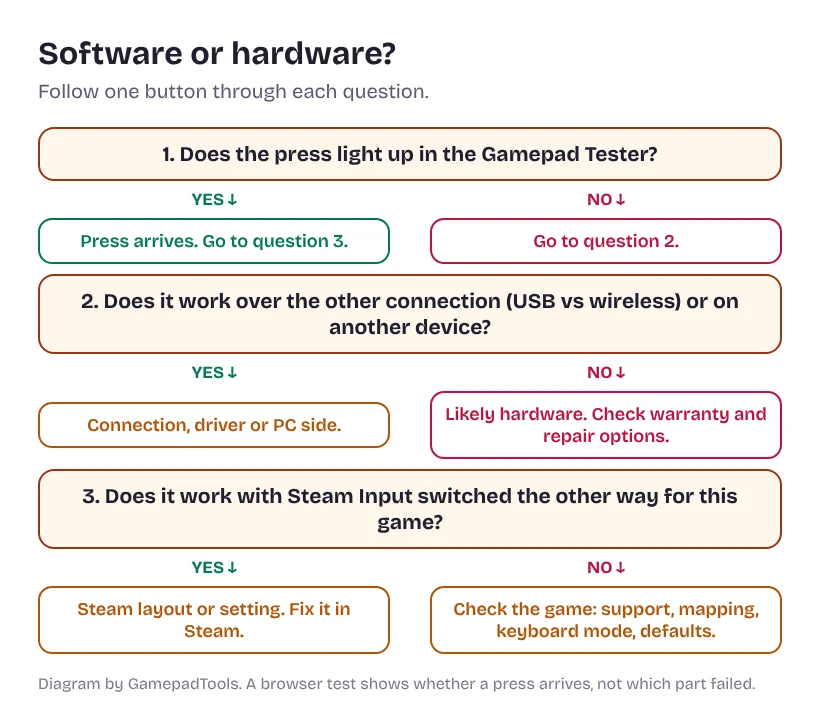
A button is physically stuck
A button that feels mushy, doesn’t spring back, or stays lit in the tester after you let go has a physical problem. Sticky drinks and dirt are common causes.
A button misses presses across multiple apps
If the same button misses presses in the tester, in joy.cpl and on another device, the problem is inside the controller rather than in any one program.
The controller has liquid or impact damage
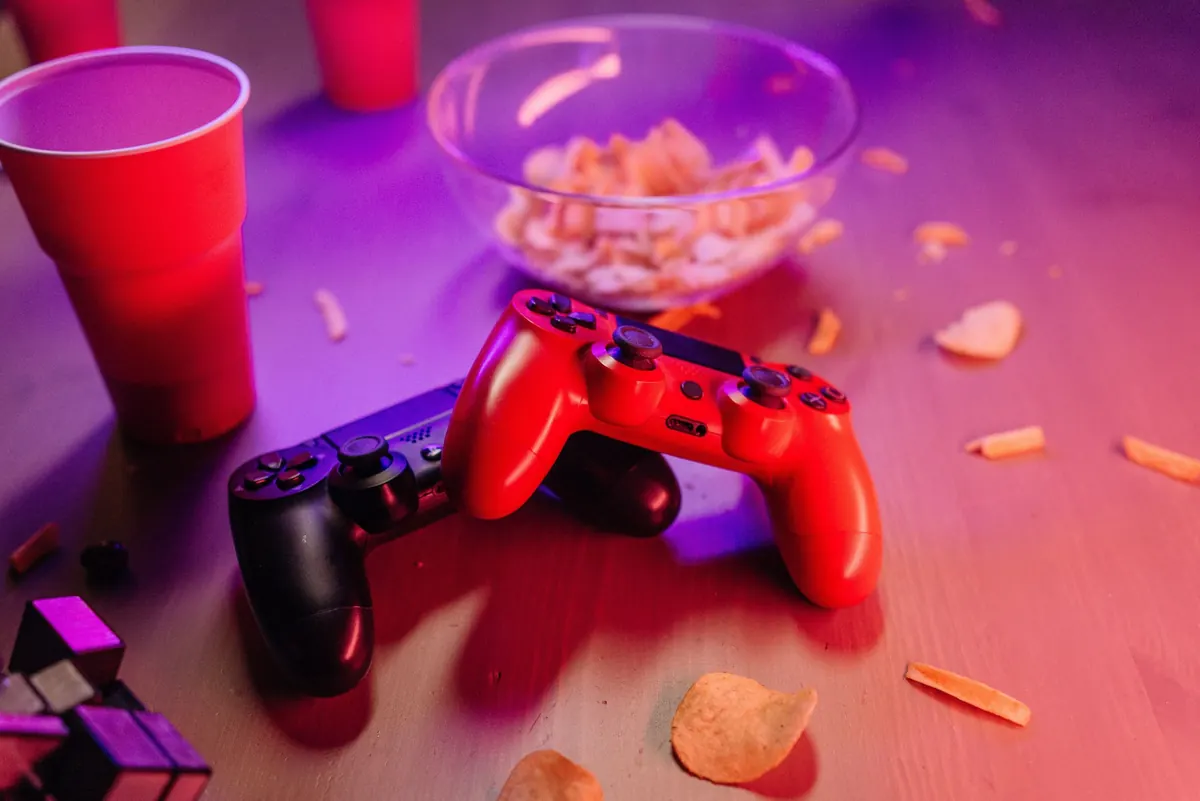
After a spill, stop using the controller, unplug it and let it dry fully. Don’t keep pressing a sticky button, and don’t charge a controller that may be wet. A drop can crack internal parts even when the shell looks fine.
A switch or internal contact may be worn
Buttons you use constantly, like the jump button or a trigger, wear faster than the rest. A gradual change, where the button needs firmer presses over weeks, fits wear better than a software fault.
When Should You Repair or Replace the Controller?
- Warranty first. Check it before you open anything. Opening the shell can affect your cover, and the maker may repair or replace a faulty controller for free.
- Official manufacturer support. Start with the maker’s support site and keep your test table. It shows exactly which button failed and where.
- Professional repair. A repair shop can clean contacts or replace worn switches. It’s often worth it for an expensive controller.
- Repair cost vs replacement. For a cheaper controller, a repair can cost close to a new one. Get a quote before deciding.
- Risks of opening it yourself. Clips and ribbon cables break easily, and some controllers need special screwdrivers. If you go ahead, follow a guide written for your exact model.
- No liquids or sprays inside powered electronics. Disconnect the controller and remove the battery where possible before any cleaning inside.
When someone tells me a button stopped working, my first question is always: does it light up in a tester? That one answer cuts the list of causes in half before anyone touches a driver or a screwdriver.
— SannkarFrequently Asked Questions
Why are my controller buttons not working on PC?
Why does only one controller button not work?
Why do controller buttons work in Windows but not in a game?
How can I test every button on a gamepad?
Why are my controller buttons mapped incorrectly?
Can Steam Input cause controller buttons to stop working?
Why are my triggers or bumpers not registering?
Can a controller button be repaired?
How do I know if a controller button is physically broken?
Why does my controller button work sometimes but not every time?
Final Thoughts
Most “broken” buttons aren’t broken. They’re unmapped, remapped by Steam, or ignored by one game. Test each button in a tester and in joy.cpl, then work through Steam and the game. Only when a button fails everywhere is it time to think about hardware, and your warranty comes before your screwdriver.
Sources and Further Reading
References
- Logitech Support: Access the Windows Game Controllers test pageHow to open joy.cpl and read the Test tab
- Logitech Support: Resolve controller calibration issuesRaw data, driver and game layers
- Steamworks: Getting started with Steam Input for playersSteam controller settings and per-game configuration
- W3C: Gamepad specificationStandard button layout and analog trigger values
- MDN: Using the Gamepad APIWhy a page only sees a controller after a button press
- Microsoft Support: Update Bluetooth drivers in WindowsOfficial ways to update drivers
More from GamepadTools
- PS5 controller not connecting to PC?Connection and pairing fixes for DualSense
- How to reduce controller input lag on PCIf presses arrive late rather than not at all
- How to test your controller for stick driftWhen the sticks misbehave too
- What is a controller dead zone?Why small stick movements can be ignored
Diagrams by GamepadTools. Feature photo from Unsplash; drinks and snacks photo by Pavel Danilyuk on Pexels.
Written by Sannkar
This guide uses Logitech’s documentation of the Windows Game Controllers test page, Valve’s Steam Input documentation, the W3C Gamepad specification and MDN, and a review of how the GamepadTools Gamepad Tester works. Diagrams are simplified, and drivers and games vary.