PS5 Controller Not Connecting to PC? Try These Fixes
Your DualSense works perfectly on the PS5. Plug it into the PC and nothing happens, or the Bluetooth list stays empty, or Windows shows it as connected while your game ignores every button. Those are three different problems with three different fixes. Pick the symptom that matches yours and go straight to it.
On this page
Quick Answer: How to Connect a PS5 Controller to PC
Sony says the DualSense supports both USB and Bluetooth connections on Windows 10 (64-bit) and Windows 11 (PlayStation: PlayStation gaming on PC). No extra software is needed just to connect it.
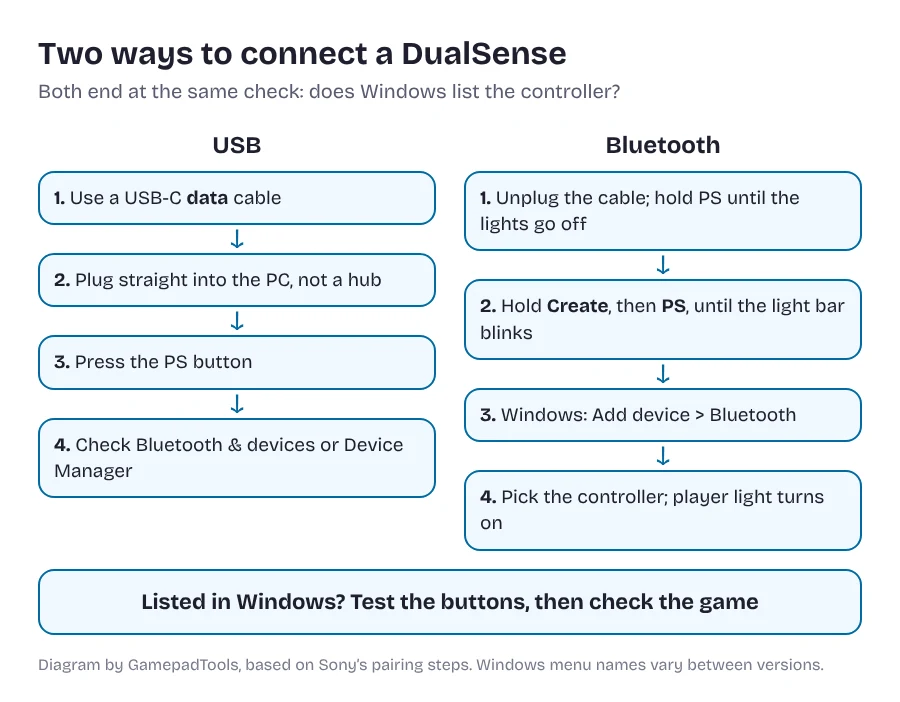
- USB: plug in a USB-C data cable and press the PS button.
- Bluetooth: turn the controller off, hold Create and then PS until the light bar blinks, and add it in Windows’ Bluetooth settings.
Not working? Choose what you’re seeing:
- Nothing happens when I plug it inCharge-only cables, ports and detectionUSB
- I’ve never paired it with this PCSony’s pairing steps, in orderBluetooth
- It doesn’t appear in BluetoothOld pairings, adapters and driversFix list
- It keeps reconnecting to my PS5 or phoneHow the controller picks a devicePairing
- Windows sees it, but the game doesn’tSteam and game supportGame side
- Nothing works anywhereFirmware update and official resetLast steps
Before You Troubleshoot
Confirm Windows compatibility
Check your Windows version under Settings > System > About. Sony lists Windows 10 (64-bit) and Windows 11 for DualSense USB and Bluetooth connections. Windows 10 still works, but Microsoft ended free support on 14 October 2025, so it no longer receives free software updates through Windows Update (Microsoft).
Charge the controller
Microsoft notes that some Bluetooth devices won’t enter pairing mode or stay connected when the battery is low (Microsoft: Troubleshoot Bluetooth not connecting). Charge the DualSense for a while first, from the PS5 or a USB charger.
Use a data-capable USB cable
Plenty of USB-C cables carry power only. They’ll light up and charge the controller, but the PC never sees it. The cable that came with your controller or PS5 is a safe choice. If you use another one, make sure it’s sold as a data cable.
Disconnect from other paired devices
A DualSense that’s still connected to your PS5, phone or another PC won’t pair with this one. Turn the console off or move out of its range, then hold the PS button until the lights on the controller go off.
Check whether you have DualSense or DualSense Edge
The DualSense Edge is Sony’s pro controller. It adds back buttons, an Fn (function) button and custom profiles. Connection steps are almost the same for both, but the reset and some settings differ, so check which one you have. The differences are explained in DualSense vs DualSense Edge.
Method 1: Connect the DualSense Using USB
Choose a data-capable USB cable
Plug the USB-C end into the top of the controller and the other end into the PC, then press the PS button. A cable is also the connection to use for some features. Sony notes that haptic feedback may need USB on PC, and that the headset jack needs a wired connection (PlayStation).
Connect directly to the PC
Use a port on the PC itself, ideally on the back of a desktop, rather than a hub, keyboard port or monitor port. Each extra connector is one more thing that can fail.
Check Windows detection
Open Settings > Bluetooth & devices on Windows 11 (on Windows 10: Settings > Devices) and look for the controller. Or open Device Manager and watch the list refresh as you plug it in. Windows usually lists it as a wireless controller or a game controller.
Troubleshoot a controller that charges but is not detected
If the light bar comes on but Windows shows nothing, the cable is the prime suspect. Work through this in order:
- Swap the cable for one you know carries data, such as the one from your PS5.
- Try a different port directly on the PC.
- Restart the PC with the controller unplugged, then connect it again.
- Test on another device, such as the PS5 or another PC, to see whether the fault follows the controller.
If two known data cables and two ports all fail, and the controller doesn’t work on another device either, skip to firmware and reset.
Method 2: Connect the DualSense Using Bluetooth
These are Sony’s first-time pairing steps (PlayStation: Use DualSense with PC, Mac and mobile), with the Windows side added.
Put the controller into the correct pairing mode
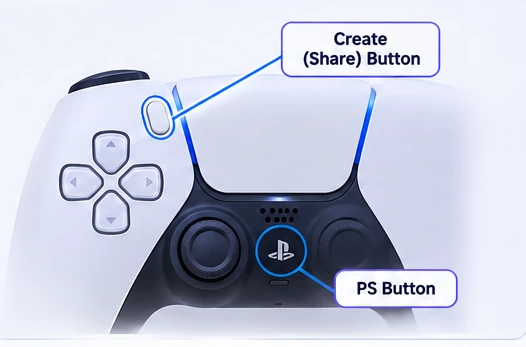
Unplug any USB cable. If the player indicator is lit, hold the PS button until it turns off. Then press and hold the Create button and, while holding it, press and hold the PS button until the light bar starts blinking. Create is the small button on the upper left of the touch pad. If the light comes on without blinking, let go, turn the controller off and try again.
Open Windows Bluetooth settings
On Windows 11: Settings > Bluetooth & devices, make sure Bluetooth is on, then Add device > Bluetooth. On Windows 10: Settings > Devices > Bluetooth & other devices > Add Bluetooth or other device > Bluetooth.
Select the correct device
Choose the controller when it appears. It’s usually listed as “DualSense Wireless Controller” or simply “Wireless Controller”. If several controllers are nearby, turn the others off so you pick the right one.
Confirm successful pairing
Sony says the light bar blinks and then the player indicator lights up when pairing is complete. Windows should show the controller as connected. Then test the inputs before you open a game.
Pressing PS on a switched-off DualSense reconnects it to the last device it used. Sony also describes registering up to four devices in separate slots, using the PS button together with Create or an action button, and switching between them (PlayStation). If the controller keeps choosing the wrong device, pair it with the PC again or use its slot buttons. To go back to the PS5, connect the controller to the console with a USB cable and press PS.
Windows Cannot Find the PS5 Controller
Remove an old pairing record
If the controller was paired before, Windows may be holding an outdated record. In Settings > Bluetooth & devices > Devices, open the controller’s … menu, choose Remove device, then pair from scratch. If it never shows up in the list, set Bluetooth devices discovery to Advanced on the same page; Microsoft says the default setting shows only common device types (Microsoft: Fix Bluetooth problems).
Restart Bluetooth
Turn Bluetooth off, wait about 10 seconds, turn it back on and try pairing again. If that doesn’t help, restart the PC. Both steps are on Microsoft’s own checklist.
Check Bluetooth adapter and drivers
Many desktop PCs have no Bluetooth at all. Open Device Manager and expand Bluetooth; if there’s no adapter, you’ll need a USB Bluetooth adapter or a cable. For drivers, Microsoft lists Windows Update, Device Manager’s Update driver > Search automatically for drivers, and your PC or motherboard maker’s support site, and suggests rolling back a driver if Bluetooth broke after an update (Microsoft: Update Bluetooth drivers). Avoid “driver updater” utilities and unofficial controller drivers.
Reduce possible wireless interference
Sit close to the PC with nothing solid in between. Microsoft notes that a Bluetooth device can become sluggish or unresponsive near a device plugged into a USB 3.0 port, and that unshielded USB devices can interfere. If you use a USB adapter, move it to another port or onto a short extension cable, away from other USB gear.
Try USB as a diagnostic comparison
If the controller works over a cable but not over Bluetooth, the controller is fine and the problem is in the Bluetooth link: the adapter, its driver, interference or an old pairing. If it fails over USB too, go back to the USB checks.
Windows Detects the Controller but Games Do Not
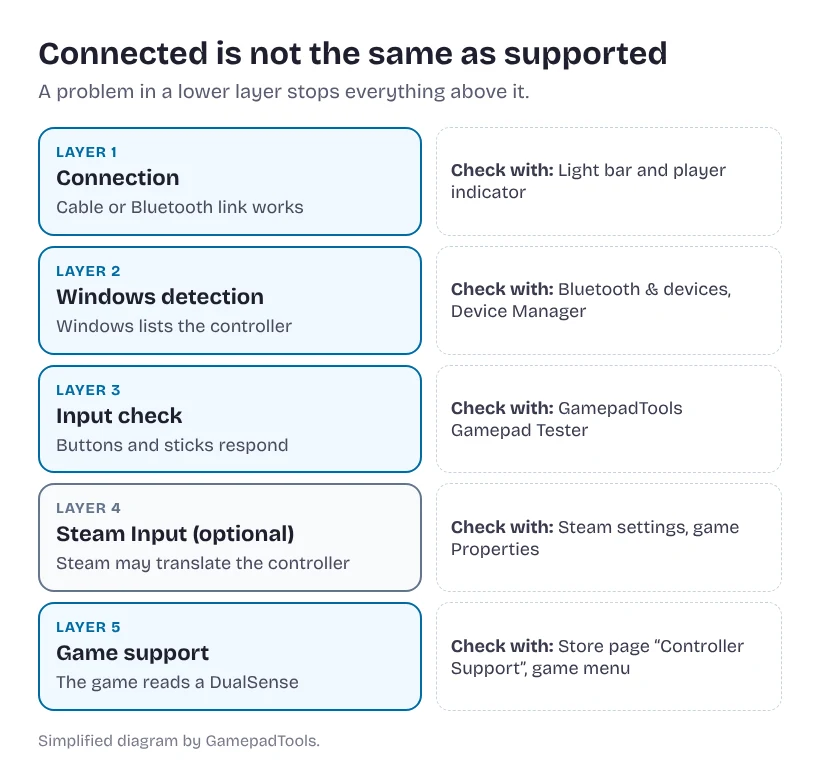
Windows seeing the controller only proves the connection works. Each layer above it has to work too.
Test with GamepadTools Gamepad Tester
Open the Gamepad Tester and press a few buttons. If they respond there, the controller and Windows are doing their job, and the problem is in Steam or the game. If they don’t, the problem is lower down, so go back to the connection checks.
Check Steam controller settings
In Steam, open Settings > Controller and make sure support for PlayStation controllers is enabled if you want Steam to handle the DualSense.
Check game controller support
Sony notes that even when a DualSense is connected, controller support can vary by game. It suggests checking the “Controller Support” section on the game’s Steam store page, which shows full or partial support (PlayStation). Look in the game’s own controls menu too; some games need you to pick a controller or input device.
Test Steam Input on and off
Some games work better with Steam Input handling the controller, and others with it off. Right-click the game in your library, open Properties > Controller, and use the override to switch Steam Input for that game only. Test after each change.
Understand third-party remapping applications
You don’t need DS4Windows or any other third-party tool to connect a DualSense to Windows. Some players use such tools to make a PlayStation controller appear as an Xbox controller in older games. If you try one, don’t run it at the same time as Steam Input, or the game may see two controllers and receive doubled inputs. If individual buttons work in some places and not others, the controller buttons not working guide walks through it button by button.
Update DualSense Firmware and Reset the Controller
Keep these for last. They take longer, and the earlier checks fix most connection problems.
Use the official PlayStation Accessories application
Sony’s PlayStation Accessories app for Windows updates the controller’s firmware without a PS5 (PlayStation). Sony describes it as the app for DualSense and DualSense Edge controllers, separate from the PlayStation Link PC Driver used for PS Link devices (PlayStation: PS Link PC Driver). You can also update the controller from a PS5 if you have one.
Update firmware safely
Install the app from PlayStation’s website, connect the controller when it asks, and follow the prompts. We’d use a USB cable for updates so the connection can’t drop halfway. Keep the PC awake and the controller connected until the app says the update is complete. Don’t use firmware files from unofficial sites.
Reset the controller using Sony’s official procedure
For a standard DualSense, Sony’s steps are (PlayStation: Troubleshoot DualSense):
- Turn off the PS5 if there’s one nearby.
- Unplug the USB cable from the controller.
- Find the small hole next to the Sony logo on the back of the controller.
- Press and hold the reset button inside with a pin or similar tool for at least 5 seconds.
Sony’s steps then reconnect the controller to the PS5 with a USB cable. For PC use, pair it with the PC again using Method 2, or plug it in with a cable.
When to contact PlayStation Support
If the controller isn’t detected over USB with two known data cables, won’t pair with any device after a reset and an update, or has physical damage, stop there. Sony points players to its PlayStation Repairs diagnostic tool for controller issues. Check your warranty before opening the controller, because opening it yourself may affect your repair options.
DualSense vs DualSense Edge on PC
| DualSense | DualSense Edge | |
|---|---|---|
| Windows versions Sony lists | Windows 10 (64-bit), Windows 11 | Windows 10 (64-bit), Windows 11 |
| Bluetooth pairing | Hold Create, then PS, until the light bar blinks | The same steps |
| Reset | Reset button in the hole near the Sony logo, held for at least 5 seconds | Small reset button on the back; Sony says it doesn’t affect pairing or profile settings |
| PlayStation Accessories app | Firmware updates | Firmware updates and profile settings |
| Extra controls | None | Fn button, back buttons, custom profiles |
Sources: Sony’s DualSense Edge with PC and other devices and DualSense Edge troubleshooting pages. How the Edge’s extra buttons behave in a PC game depends on the game and on whether Steam Input is handling the controller.
How to Test Whether Your PS5 Controller Works on PC
Once Windows shows the controller as connected, open the GamepadTools Gamepad Tester and press any button. Browsers only show a controller to a web page after you press something, so “Not Connected” before the first press is normal.
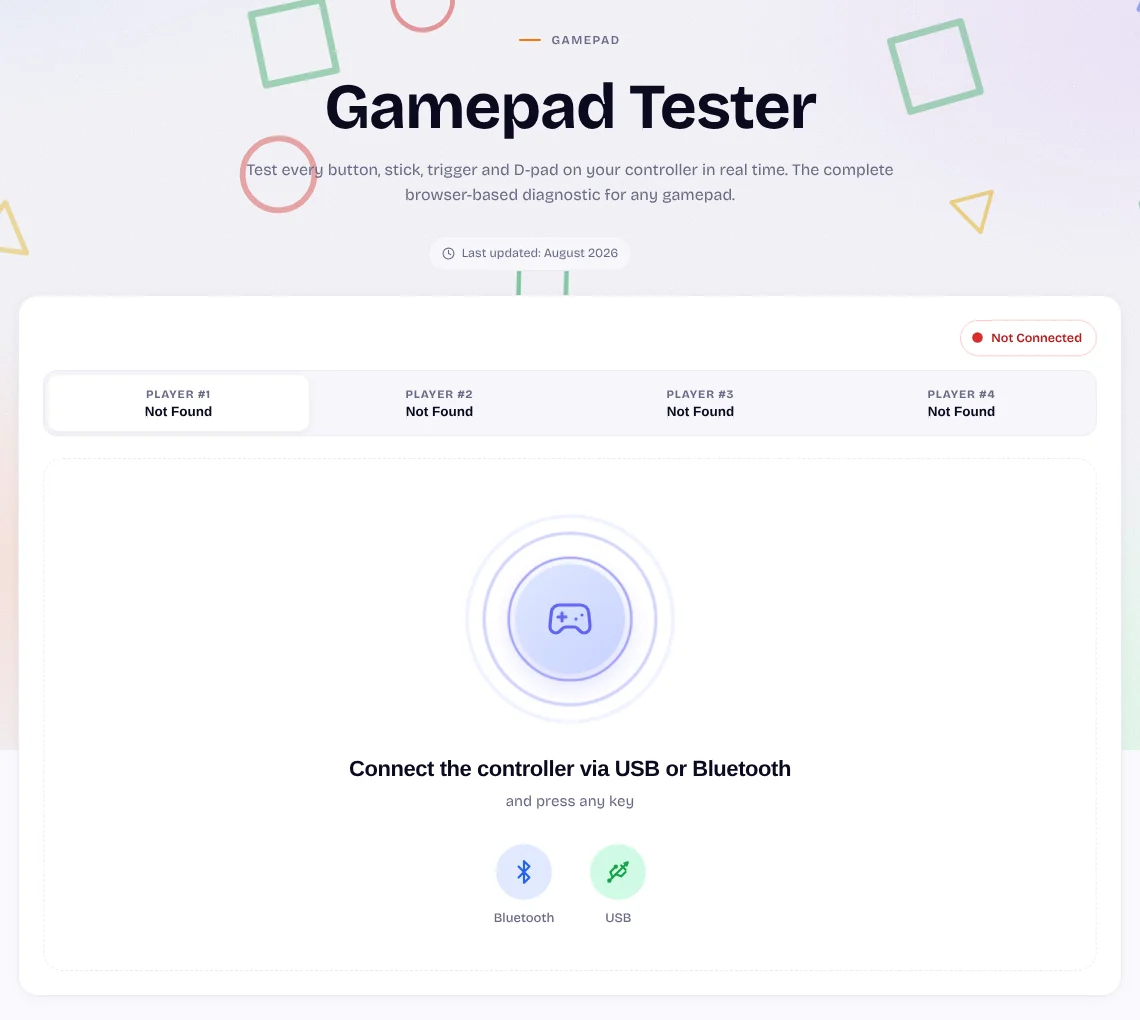
Press every button, then move both sticks and both triggers. What a pass tells you: the controller, the connection and Windows are working, so any remaining problem is in Steam or the game. What it can’t tell you: whether a specific game supports the DualSense, or whether features such as haptics, adaptive triggers or the touch pad work in that game. A browser may not show every DualSense button either, such as the PS button or touch-pad click.
Most DualSense “won’t connect” problems turn out to be a charge-only cable, an old Bluetooth pairing or a game that wants a different setup. Rule those out before you reach for the reset hole.
— SannkarFrequently Asked Questions
Does a PS5 DualSense controller work on Windows 11?
Does the PS5 controller work on Windows 10?
How do I connect a PS5 controller to a PC with USB?
How do I connect a PS5 controller to PC using Bluetooth?
Why does my PS5 controller charge but not connect to PC?
Why is DualSense not showing in Bluetooth?
Why does Windows detect my PS5 controller but my game does not?
Does the PS5 controller work on Steam?
Do I need DS4Windows to use a PS5 controller on PC?
Can I use all DualSense features on PC?
How do I update DualSense firmware on PC?
How do I reset a PS5 controller?
Final Thoughts
A DualSense that won’t connect is usually pointing at the cable, the pairing or the game, not a broken controller. Start with a data cable, follow Sony’s pairing steps exactly, clear out old Bluetooth records, and check the game’s controller support. Keep the firmware update and reset for last.
Sources and Further Reading
References
- PlayStation: How to use DualSense wireless controllers with PC, Mac and mobile devicesPairing mode, device slots and PlayStation Accessories
- PlayStation: PlayStation gaming on PCSupported Windows versions, game support and features that need USB
- PlayStation: How to troubleshoot DualSense wireless controller issuesOfficial reset steps
- PlayStation: DualSense Edge with PC, Mac and mobile devicesEdge pairing and device slots
- PlayStation: Troubleshoot DualSense Edge wireless controllerEdge reset and what it keeps
- Microsoft Support: Troubleshoot Bluetooth not connecting in WindowsPairing mode, battery, restart and re-pair steps
- Microsoft Support: Fix Bluetooth problems in WindowsDiscovery setting and USB 3.0 interference
- Microsoft Support: Update Bluetooth drivers in WindowsSafe ways to update or roll back drivers
More from GamepadTools
- Controller buttons not working?Button-by-button testing on PC
- How to reduce controller input lag on PCIf it connects but feels delayed
- How to calibrate a controllerOfficial calibration and adjustment options
Diagrams by GamepadTools. Feature photo by Mahtab Mashuq Tonmoy on Unsplash.
Written by Sannkar
This guide follows Sony’s official DualSense pairing, PC support and troubleshooting pages and Microsoft’s Bluetooth troubleshooting steps. Windows menu names are from current Windows 11 and Windows 10 versions and can change after updates.