How to Reduce Controller Input Lag on PC
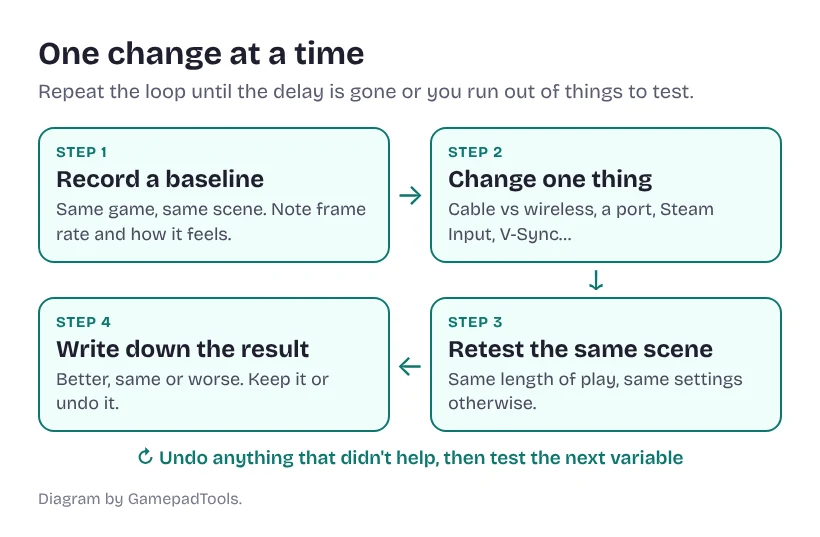
You press jump, and the character seems to think about it first. Before you blame the controller, remember that a press travels through the connection, Windows, the game, the graphics card and the screen. Any of them can add the delay. This guide treats the fix like a small experiment: record a baseline, change one thing, test again and keep only what helps.
On this page
Quick Fixes to Reduce Controller Input Lag
These five checks are quick, free and easy to undo. Each one targets a different link in the chain, so together they narrow the problem down fast. None of them is a guaranteed fix; they’re the most useful first experiments.
- Try a known data-capable USB cable. A cable takes radio interference, distance and battery level out of the picture in one move.
- Compare wired and wireless in the same game and scene. If the delay changes, the connection is involved. If it doesn’t, look further down the chain.
- Check frame rate and frame-time consistency. Low or uneven frame rates delay what you see, and that feels exactly like slow controls.
- Check Steam Input and other remapping tools. Two programs handling one controller can cause doubled or confused input.
- Review game and display latency settings: V-Sync, low-latency modes, the monitor’s refresh rate and a TV’s game mode.
Change one thing at a time. If you change five settings and it feels better, you won’t know which one helped, or whether one of them quietly made something else worse.
What Causes Controller Input Lag on PC?
NVIDIA splits the delay on your own PC into three parts: the peripheral, the PC (operating system, game and rendering) and the display (NVIDIA system latency guide). It also notes that the PC part is often the largest. Online games add a fourth part: the network. Here’s the whole chain a button press travels through.
Only the first two links really belong to the controller. That’s why calling the whole chain “controller latency” leads people to buy a new pad and still feel the same delay.
Controller and connection delay
The controller reads its buttons and sends reports over a cable or radio link. A worn cable, a weak wireless signal, interference or a low battery can delay or drop those reports. The typical sign is a small, constant delay in every game, which changes when you switch between cable and wireless.
Windows and driver processing
Windows and the controller’s driver hand the input to applications. Problems here are less common, but extra layers such as remapping tools or virtual controllers add work and can confuse games. If the delay disappears when you close a particular program, this is where it was coming from.
Game processing and low FPS
The game only shows your input when it produces the next frame. At low or uneven frame rates, that wait gets longer and less predictable. The sign: delay that comes and goes, worse in busy scenes, often with visible stutter. The controller is fine here; the PC is struggling.
Display latency
The screen adds the last delay. A monitor running below its rated refresh rate, or a TV with heavy image processing, can make every input feel late even when everything else is fast.
Network lag in online games
Menus respond instantly, but other players jump around, hits register late, or you snap back after moving. That’s the connection to the game server, not your controller. A simple check: if the same delay happens offline or in a training mode, it isn’t network lag.
| What you notice | Most likely link | First experiment |
|---|---|---|
| Constant small delay in every game | Controller or connection | Cable vs wireless, same scene |
| Delay in busy scenes, with stutter | Game processing and frame rate | Lower one demanding setting |
| Fine in menus, late against other players | Network | Same action offline |
| Only in one game | Game settings or input mode | V-Sync and Steam Input for that game |
| Everything feels late, including the desktop | Display | Refresh rate and TV game mode |
Test Your Controller Before Changing Settings
Think of this as the “before” photo. Without it, you’re comparing how it feels today with a memory from yesterday.
Establish a repeatable baseline
Pick one game and one repeatable moment: a training range, a menu you can flick through, or a jump you can repeat. Play it for a couple of minutes and note how it feels. If the game has a frame-rate counter or performance overlay, write down roughly what it shows. Then fill in a row of this log every time you change something.
| Test | One change made | Frame rate seen | Better / same / worse | Keep it? |
|---|---|---|---|---|
| Baseline | None | |||
| A | ||||
| B | ||||
| C |
Compare wired and wireless
If your controller can do both, run the same test twice: once with a cable, once wireless. Same game, same scene, same settings. A clear difference points at the connection. No difference means the delay is probably in the game, the PC or the display.
Use the GamepadTools Latency Checker
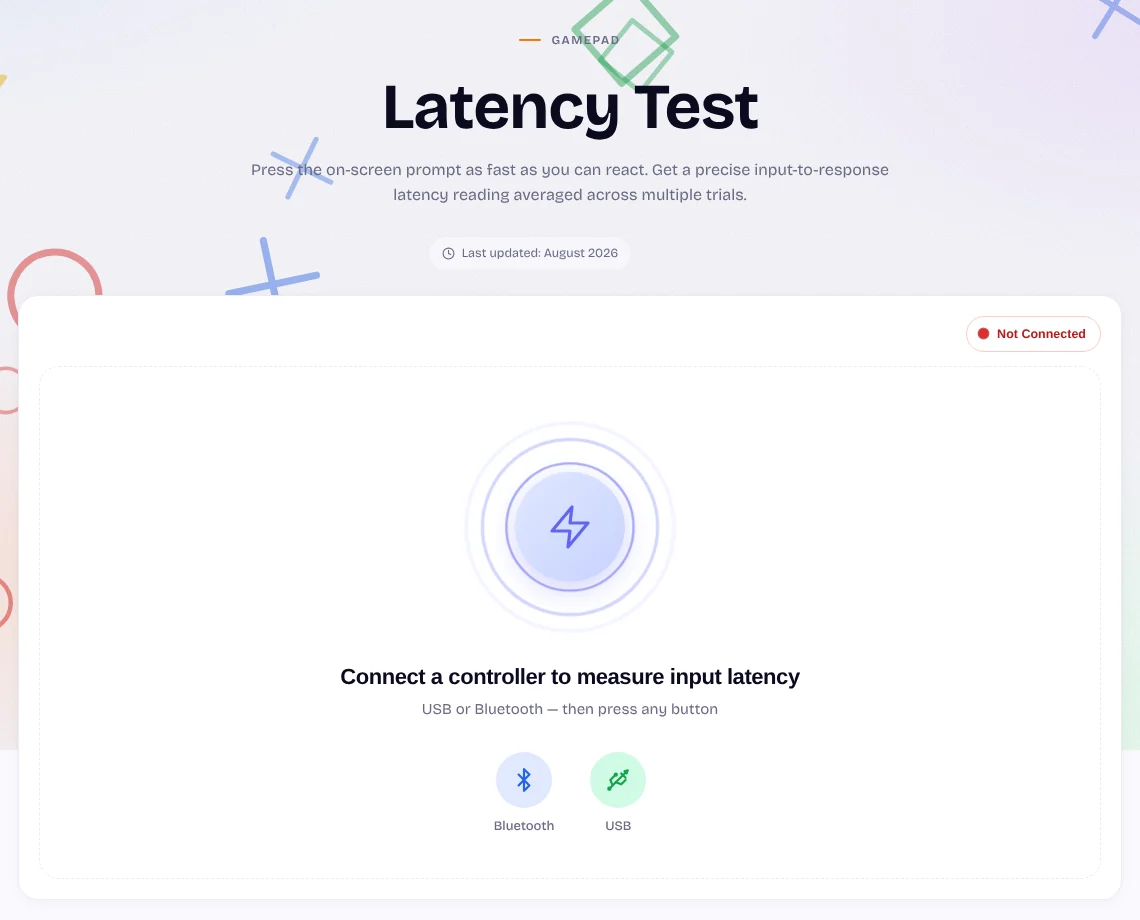
The GamepadTools Controller Latency Test gives you a number to compare between setups. Connect the controller, press any button to wake it, then press buttons repeatedly. The tool shows the latest reading plus the lowest, average and highest values.
Understand what the latency test actually measures
The Gamepad API includes a timestamp for the last time a controller’s data was updated (MDN: Gamepad.timestamp). When the browser provides a usable timestamp, the tool records the gap between it and the moment the page reads the press on its next screen refresh. If the browser gives no usable timestamp, the tool shows an estimate based on the page’s refresh interval instead. Three different things often get mixed up:
| Measurement | What it covers | How to see it |
|---|---|---|
| Browser-observed update timing | Part of the browser side only: from the browser’s timestamp to the page reading the press | GamepadTools Latency Test |
| Hardware polling rate | How often the controller sends reports to the PC | The maker’s specs or software; a browser can only estimate it |
| End-to-end input latency | From pressing the button to the result appearing on screen | Specialist hardware, such as a high-speed camera or a dedicated latency analyser |
The Latency Test can’t see the time inside the controller, most of the USB or wireless transfer, your game, your graphics card or your screen. Its numbers also can’t be compared with other tools or other people’s results. Compare your own setups instead: cable vs Bluetooth, or one USB port vs another, on the same PC and browser.
The Gamepad Polling Rate Test answers a different question: how often the browser sees new values while you keep the sticks moving. It checks once per screen refresh, so its reading can’t go higher than your display’s refresh rate. Read it as a comparison tool too, and see what is a good polling rate for what the number does and doesn’t mean.
Check Your Controller Connection
USB cable and port
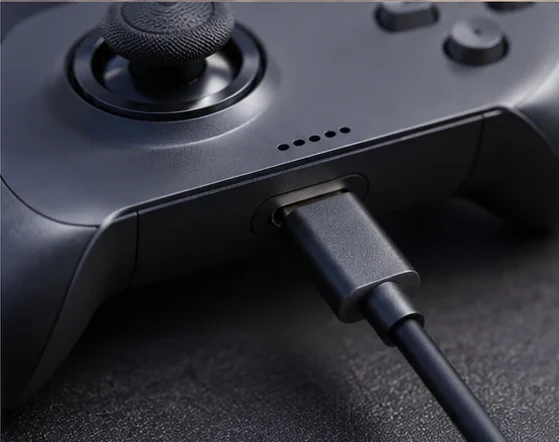
Use a cable you know carries data, plugged straight into the PC. On a desktop, try a port on the back as well as the front. If one port gives you dropouts or delay and another doesn’t, you’ve learned something useful without touching a single setting.
Bluetooth range and interference
Bluetooth works well for many people, but it’s sensitive to distance and obstacles. Sit closer, keep a clear line between the controller and the PC, and don’t hide the adapter behind a metal case. Microsoft notes that a Bluetooth device can become unresponsive or sluggish when it’s close to a device plugged into a USB 3.0 port, and that unshielded USB devices can interfere too (Microsoft: Fix Bluetooth problems in Windows).
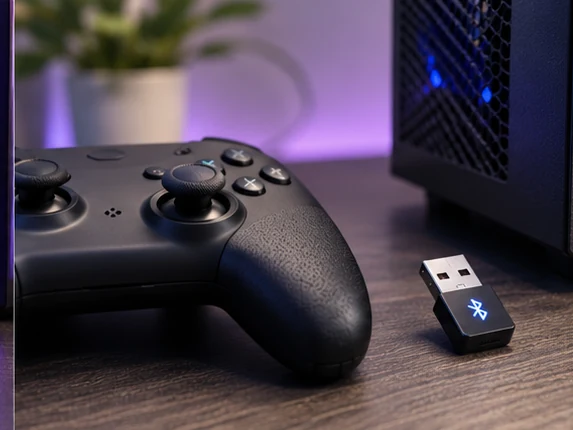
Wireless receiver placement
Some controllers use their own USB receiver instead of Bluetooth. The same rules apply: keep it in view, close to where you sit, and away from crowded USB ports. If the maker includes an extension cable for the receiver, use it.
USB hubs and connected devices
A hub, keyboard pass-through port or monitor USB port adds another component that can misbehave. As a test, plug the controller (or its receiver) straight into the PC and unplug USB devices you don’t need, especially other wireless dongles and external drives. If that helps, add devices back one at a time to find the one that matters.
Some guides tell you to disable USB selective suspend, edit the registry or install “overclocked” USB drivers. These change how your whole PC behaves and aren’t proven fixes for controller lag. Do the reversible checks on this page first.
Check Steam Input and Controller Software
Steam Input configuration
Steam Input sits between your controller and the game. It can present your controller to the game as a different controller type, or as mouse and keyboard. The global options are under Steam > Settings > Controller, where you choose which controller types Steam handles (Steamworks: Steam Input for players). Valve doesn’t publish a latency figure for this layer, so treat it like any other variable and test with it on and off.
Per-game controller settings
In the current Steam client, right-click the game in your library and open Properties > Controller. The override there lets you enable or disable Steam Input for that one game without changing anything else. Menu names change from time to time, so look for the per-game controller override if the wording differs.
Multiple remapping applications
Trouble often starts when two programs handle the same controller: Steam Input plus a third-party remapper, or a maker’s app plus Steam. Each may work fine alone. Together they can double your inputs or add processing you don’t need. Close every remapping or overlay tool you don’t use, including tray apps that start with Windows, then add back only the one you need.
Virtual controller conflicts
Remapping tools often work by creating a virtual controller: a software copy that games see as a real device. If a game sees both the real controller and a virtual one, it may read the wrong one, read both, or switch between them. If the game shows two controllers, or switches button prompts on its own, a virtual controller is a likely cause. The buttons not working guide covers this when inputs go missing rather than arriving late.
Check Game Settings
Controller support and input mode
Some games handle controllers natively, some accept only certain controller types, and some switch between mouse and controller modes. If a game keeps flipping its button prompts, it may be reading two inputs. Check its controls menu for a controller or input device option.
V-Sync and frame-time behaviour
V-Sync stops screen tearing by making the game wait for the display. That waiting can add delay. NVIDIA recommends turning V-Sync off for the lowest latency if you’re willing to accept some tearing. If you have a G-SYNC display, NVIDIA describes keeping V-Sync on together with Reflex or the driver’s low-latency mode, which caps the frame rate below the refresh rate (NVIDIA). So there’s no single right answer: it depends on your display and how much tearing bothers you. Whatever you choose, smooth and even frame times matter as much as a high average.
NVIDIA Reflex and other low-latency options
Look in the game’s graphics menu for NVIDIA Reflex or a similar low-latency option. NVIDIA recommends turning Reflex on in games that support it, and using the driver’s Ultra Low Latency mode when a game doesn’t; when both are on, Reflex takes over. On AMD graphics, Radeon Anti-Lag is set in AMD Software: Adrenalin Edition. AMD says it works by adjusting frame timing and works best when the graphics card is the bottleneck (AMD: Radeon Anti-Lag).
Frame generation and other relevant features
Frame generation (for example DLSS Frame Generation or AMD’s equivalent) creates extra frames between the ones the game renders. That raises the frame counter, but the generated frames don’t respond to your input, and the technique adds some processing delay of its own. If a game feels sluggish with frame generation on, turn it off as one of your experiments and compare. Heavy motion smoothing on a TV can have a similar effect.
Check Windows, GPU and Display Settings
Monitor refresh rate
A monitor running below its rated refresh rate is a common, silent problem. On Windows 11 and Windows 10, go to Start > Settings > System > Display > Advanced display and pick the highest rate next to Choose a refresh rate (Microsoft: Change the refresh rate). Microsoft notes that the rates offered depend on your display. It also notes that Windows 11’s Dynamic Refresh Rate can limit the refresh rate of some games; if that happens, turning it off is Microsoft’s suggested fix. Use a cable and port that support the rate you want.
TV game mode
Many TVs add image processing that delays the picture. Turn on the TV’s game mode. The name varies by brand, so check the TV’s manual or picture settings.
GPU and CPU performance
If the graphics card is running flat out, input tends to feel slower as well as less smooth. Lowering one demanding setting, such as resolution scale or shadows, is a fair experiment. Write down the frame rate before and after.
Background processes
Downloads, recording software, browser tabs playing video and antivirus scans all compete for the same hardware. Close what you don’t need, then test the same scene again.
Windows Game Mode, where relevant
You’ll find Game Mode under Settings > Gaming > Game Mode. NVIDIA says it helps prioritise the processes linked to your game, so the CPU can focus on reading input and running the game. It’s worth leaving on and testing, but it won’t fix a problem that sits in the connection or display.
Wired vs Wireless Controller: Which Is Better?
A cable is the best way to test, because it removes radio interference, battery level and pairing from the list of suspects. That doesn’t make every wireless connection slow. A healthy receiver or Bluetooth link can feel perfectly responsive, and a poor cable or crowded hub can cause problems of its own.
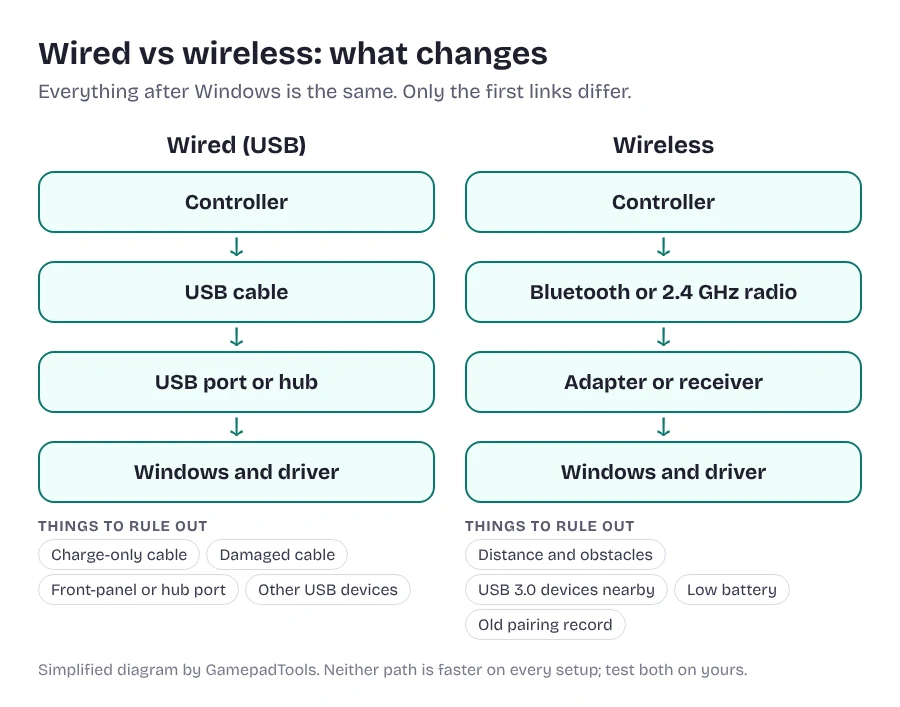
| Wired (USB) | Wireless (Bluetooth or receiver) | |
|---|---|---|
| Main strength | Fewer variables; charges while you play | Freedom to sit anywhere in range |
| Common weak spots | Charge-only or damaged cables, hubs | Distance, obstacles, USB 3.0 interference, low battery |
| Feature support | Some controller features need a cable on PC | Depends on controller, adapter and game |
| Best use | Testing and competitive play | Everyday play once it tests well |
If pairing or Bluetooth detection is part of your problem with a PlayStation controller, the PS5 controller connection guide covers adapters and re-pairing in detail.
Step-by-Step Input Lag Troubleshooting Checklist
- Record a baseline in one game and one repeatable scene.
- Rule out the network: does the delay happen offline too?
- Compare cable and wireless with everything else unchanged.
- Try another USB port, directly on the PC, with a known data cable.
- Move the Bluetooth adapter or receiver closer and away from USB 3.0 devices.
- Close extra remapping tools and test Steam Input on and off for that game.
- Check frame rate and stutter in busy scenes; lower one demanding setting.
- Test V-Sync off, Reflex or Anti-Lag, and frame generation off.
- Confirm the monitor’s refresh rate or turn on the TV’s game mode.
- Keep the changes that helped and undo the rest.
The most useful habit here isn’t a setting. It’s writing down what you changed. Lag hunting goes wrong when everything changes at once and nobody can tell which change made the difference.
— SannkarFrequently Asked Questions
What causes controller input lag on PC?
Does a wired controller have less input lag than Bluetooth?
How do I reduce Bluetooth controller delay?
Does Steam Input add latency?
Can V-Sync cause controller input delay?
Does a higher polling rate reduce controller latency?
Why does my controller feel delayed in only one game?
How can I tell controller lag from network lag?
Does a higher monitor refresh rate improve controller responsiveness?
Can a USB hub cause controller input problems?
Final Thoughts
Input lag is rarely one big problem. It’s usually a few small delays spread across the chain, from the cable to the screen. Find the slow link by testing one change at a time, starting with the connection and frame rate. Most of the fixes are free and easy to undo, and your log will show which ones were worth keeping.
Sources and Further Reading
References
- NVIDIA: How to reduce lag, a guide to better system latencyThe latency chain, V-Sync, Reflex, refresh rate, fullscreen and Game Mode
- AMD Support: Configure Radeon Anti-Lag, Radeon Boost and Radeon ChillWhat Anti-Lag does and when it helps most
- Microsoft Support: Fix Bluetooth problems in WindowsRange, USB 3.0 interference and unshielded USB devices
- Microsoft Support: Change the refresh rate on your monitor in WindowsWindows 11 and 10 refresh rate settings and Dynamic Refresh Rate
- Steamworks: Getting started with Steam Input for playersWhere Steam’s controller settings and per-game layouts live
- MDN: Gamepad.timestampThe browser timestamp the Latency Test relies on
More from GamepadTools
- What is a good polling rate?What polling rate means and when it matters
- PS5 controller not connecting to PC?Bluetooth pairing and adapter checks
- Controller buttons not working?When inputs go missing rather than arriving late
Diagrams by GamepadTools. Feature photo from Unsplash.
Written by Sannkar
This guide draws on NVIDIA’s system latency guide, AMD’s Radeon Anti-Lag documentation, Microsoft’s Bluetooth and display support pages, Valve’s Steam Input documentation, and a review of how the GamepadTools testers work. GamepadTools has not lab-tested latency for this guide, and no measured values are shown.